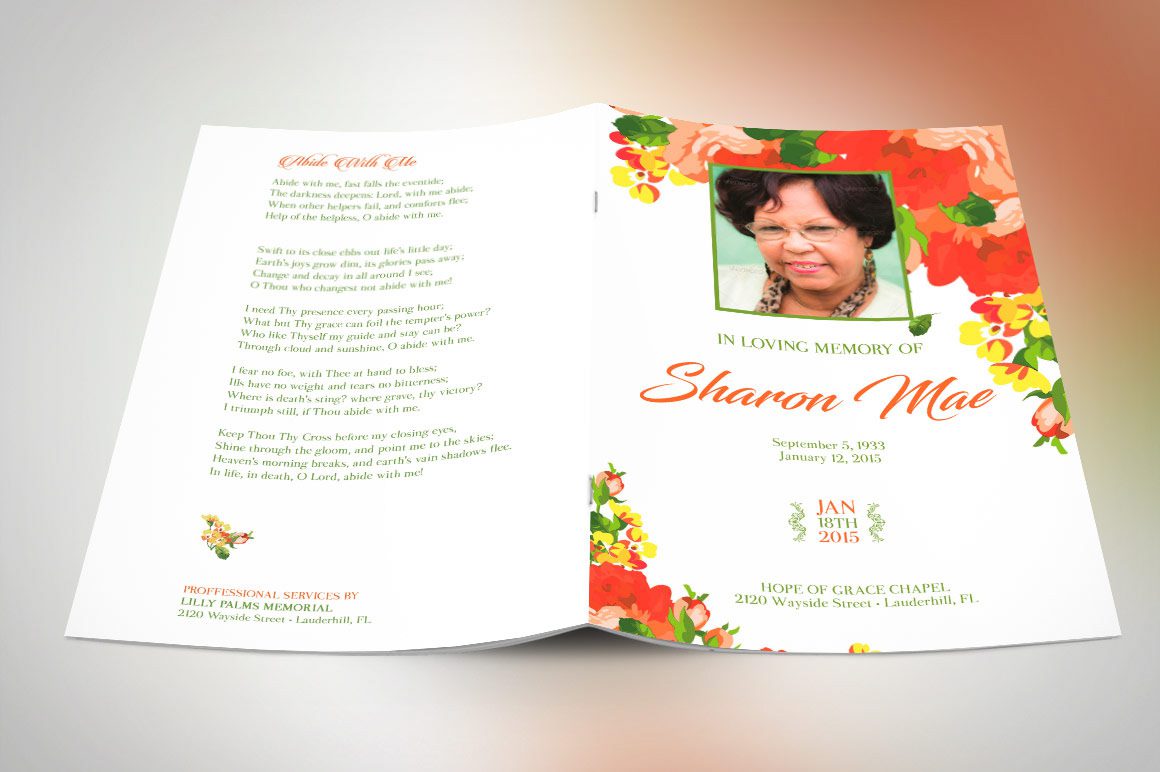
Printing Funeral Program
Planning a funeral involves many details, and creating a well-designed funeral program is an essential part of honoring a loved one’s life. Printing funeral programs allows you to share meaningful information about the service while providing attendees with a keepsake to cherish. This guide covers everything you need to know about designing, formatting, and printing funeral programs.
What is a Funeral Program?
A funeral program is a printed document that outlines the order of service, personal details about the deceased, and sometimes includes photos, quotes, or poems. It serves as both a guide for attendees and a lasting tribute.
Designing a Funeral Program
- Choose a Template
Opt for professionally designed Funeral program templates to save time and ensure a polished look.
- Include Key Elements
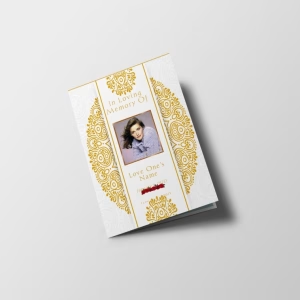
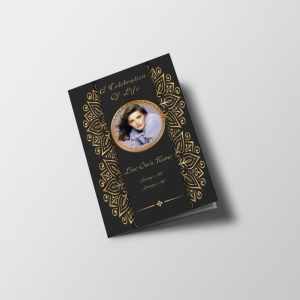
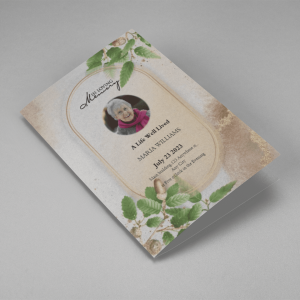
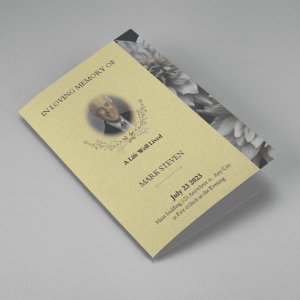
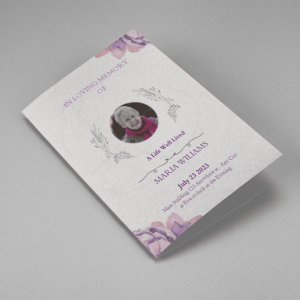
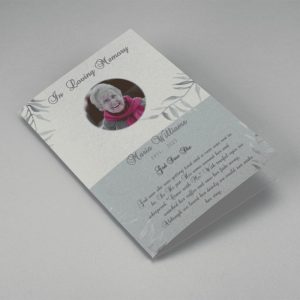
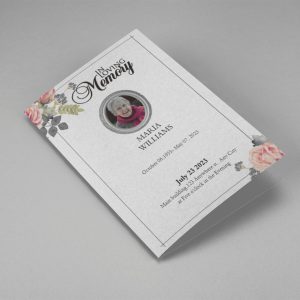
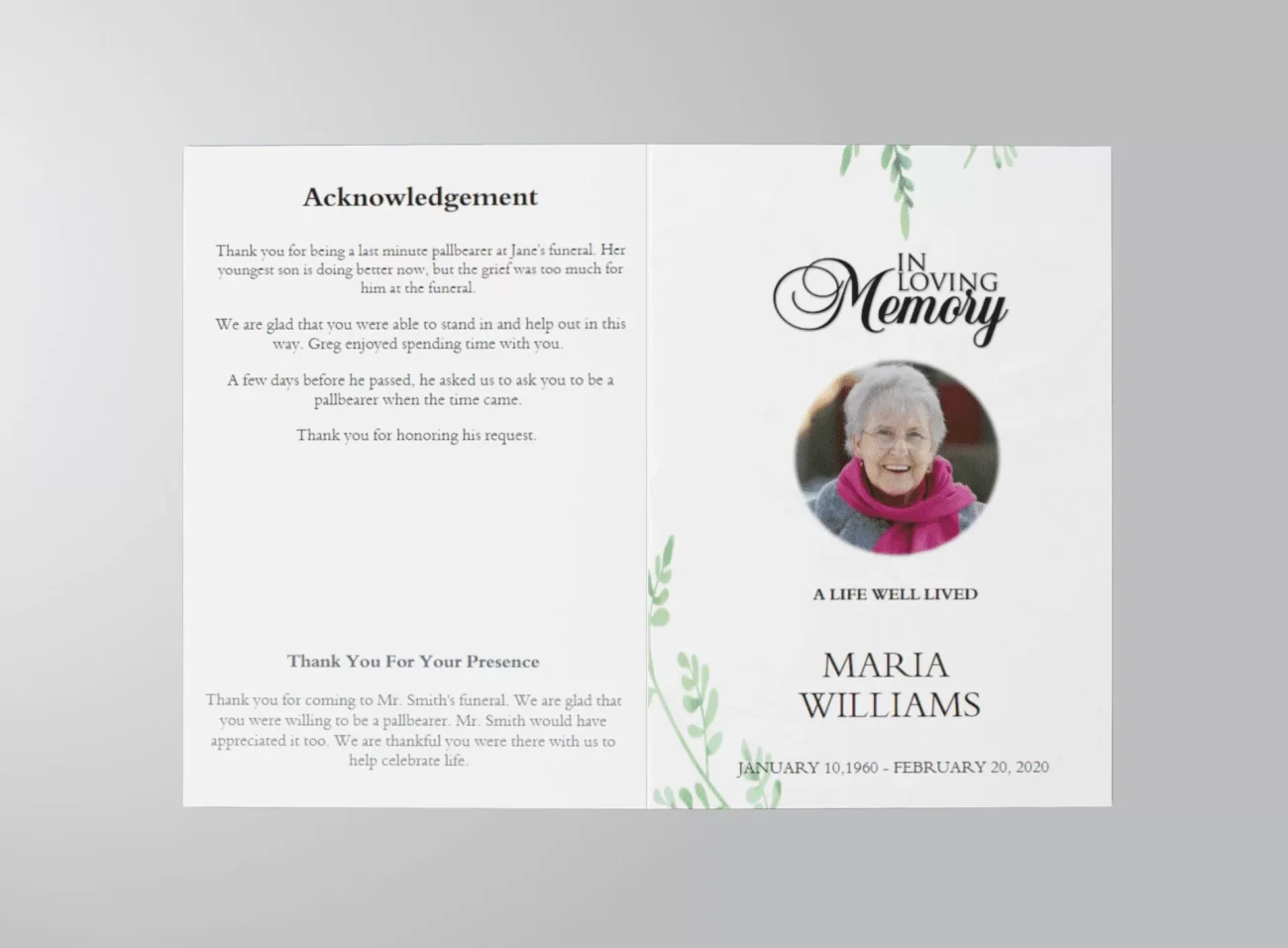
- Cover page with the deceased’s name, photo, and dates.
- Order of service or schedule of events.
- Obituary or life story.
- Funeral poems, scripture, or favorite quotes.
- Acknowledgments and thank-you notes.
- Select Fonts and Colors
Choose fonts that are easy to read and a color scheme that aligns with the service’s tone, such as soft pastels or classic black and white.
Preparing for Printing Funeral Programs
- Paper Type
Select high-quality paper for a professional finish. Glossy, matte, or cardstock options are ideal for durability and elegance. - Print Size
Standard sizes include 8.5” x 11” folded in half or smaller booklets. Ensure your printer or professional service accommodates your chosen size. - Proofreading
Carefully review your program for typos, layout errors, or missing information before printing.
USB / Flash Driver Funeral Program Printing
whether you have to take downloaded funeral program to printing shop or your another system with printer connected, you would like to think “How to save to USB”.
Here are simple steps to follow to save it to your USB / Flash Drive and get funeral programs printed.
- Download Funeral Program HD PDF file of your editing work from of funeral software available at QuickFuneral.com
- Connect your USB / Flash Drive to PC
- Open your browser downloads folder, you can simply find it in your browsers downloads section.
- Simply copy the HD PDF file of the funeral program.
- Open USB / Flash Drive in PC and simply Paste there.
- Your USB / Flash Drive is ready with the funeral program to print.
If you get any error / any issue or other problem regarding printing service, you can use our dedicated LIVE CHAT or simply write to [email protected] for a quick help.
Funeral Program Printer Settings
Please Make Sure to Setup Your Printer Correctly
1) Page Scaling – None (this will make your borders even all the way around)
2) Orientation – Set to landscape or portrait depending on which product you are printing
3) 2-Sided Printing – set your printer to print on both sides and flip on short or long edge depending on which funeral product you are printing (some less complex printers will not have this option. In this case, you will have to print one side at a time)
4) Color or Black/White – Set as desired
Note:
The first setting listed above is the most important because the borders are already built for you. If you do not set your “Page Scaling” to “None” then your borders along the edge will be bigger than they should be.
If your printer is taking a long time to print between QuickFuneral.com designs, then your printer is probably set to collate. Uncheck the colated box and your printer will not pause between pages.
Funeral Program Templates for Print
FUNERAL PROGRAMS TEMPLATES
The funeral program is also a great way to share your favorite past and present photos of grandma. They can be arranged in a Collage type format or strategically placed throughout the entire program.
Color and black & white photographs remind guests and family of the life grandma lived, the person she was, her smile, her grace… often, when designed beautifully, guests keep the program for years to come, and the memory of grandma lives on.
Employing the use of a funeral program template is a great approach to creating professional quality funeral bulletins. Here are some tips we’ve summarized when using any template for the memorial or funeral service.
Download your template to a familiar place on your hard drive such as the desktop for fast and easy location. Always copy the original template first before editing so you’ll leave the original intact. Remember to save your template frequently and rename it if you have to. Also, have all your pertinent information ready that you will want to include.
Scan photos and type up the related text so you can just copy it straight into your template. If you will be incorporating photos, crop them after scanning before you add them to your template to remove excess space. Always ask the printers for a proof to review and give you enough time for assembly or putting it all together.
Funeral Program Templates